
Top 10 Zoom Alternatives for Video Meetings in 2026
By DealKeep Team · 2026-06-07
Here are the top 10 Zoom alternatives for video meetings in 2026:
- Lark
- Google Meet
- Microsoft Teams
- Webex Meetings
- Zoho Meeting
- GoTo Meeting
- RingCentral Video
- Slack
- BlueJeans Meetings
- Whereby
These options stand out because they deliver strong video conferencing, VoIP features, team chat, AI tools like transcription, and solid security. You might find one zoom alternative fits your needs better, depending on your team size, budget, and workflow. Take a moment to think about which features matter most to you.
Key Takeaways
- Explore various Zoom alternatives like Lark, Google Meet, and Microsoft Teams to find the best fit for your team's needs.
- Consider features such as meeting duration limits, participant capacity, and integration capabilities when choosing a platform.
- Prioritize security and privacy, especially if your organization operates in regulated industries like healthcare or finance.
- Take advantage of free plans to test different platforms before committing to a paid option.
- Gather feedback from your team to ensure the chosen tool enhances collaboration and productivity.
Why Choose a Zoom Alternative
Common Zoom Challenges
You might wonder why so many people look for a zoom alternative. Zoom has helped millions connect, but it comes with some challenges that can make meetings tough. Here are a few reasons you may want to switch:
- The free version limits meetings to 40 minutes. That’s not enough for longer talks or brainstorming sessions.
- If you host big meetings, you may notice lag or freezing because HD video isn’t available on the free plan.
- Security issues like Zoom bombing have made some users worry about privacy.
Take a look at this table to see what users report most often:
Challenge
Description
Privacy, Consent and GDPR
You may worry about data privacy, especially when recordings are stored on US servers.
Technical Difficulties
Sometimes, connections drop or freeze, making you anxious about the meeting.
Working With Different Markets
Zoom isn’t always available in every region, so you might need another platform.
Tip: If you often run into these problems, it’s smart to check out other options for video meetings.
2026 Video Meeting Needs
Video meetings have changed a lot. In 2026, you need more than just a basic call. You want features that help your team work better and stay safe. Here’s what people look for now:
- Third-party integrations let you connect sales tools and enterprise software.
- Large webinars need special features for big virtual events.
- Breakout rooms help with workshops and training.
Let’s compare some popular platforms:
Feature
Google Meet (Free)
Zoom (Free)
Max call duration
60 minutes
40 minutes
Max participants
100
100
Cloud recording
Paid plans only
Paid plans only
No download needed
Yes (browser)
App required
Live captions
Yes (free)
Paid plans only
You also want strong security and compliance. Microsoft Teams, for example, meets strict rules for healthcare and finance. If your organization needs to follow regulations, you should look for a zoom alternative that fits those needs.
Zoom Alternative Comparison
 Image Source: pexels
Feature Overview
You want to find the right video meeting platform fast. A summary table helps you compare the top 10 options side by side. Check out the features, best use cases, and whether you get a free plan. This way, you can spot which zoom alternative fits your needs.
Platform
Core Features
Best Use Case
Free Plan
Lark
Team chat, docs, video calls, integrations
All-in-one workspace
Yes
Google Meet
Up to 250 participants, live captions, security
Large meetings, easy scheduling
Yes
Microsoft Teams
Up to 300 participants, recording, breakout
Enterprise, collaboration
Yes
Webex Meetings
AI tools, strong encryption, analytics
Secure, large events
Yes
Zoho Meeting
Up to 100 participants, strong security
Small businesses, webinars
Yes
GoTo Meeting
HD video, screen sharing, drawing tools
Interactive workshops
No
RingCentral Video
Unified comms, HD video, integrations
Business communication
Yes
Slack
Team chat, video calls, workflow automation
Internal team meetings
Yes
BlueJeans Meetings
HD video, Dolby audio, large meetings
High-quality audio/video
No
Whereby
Browser-based, simple UI, no downloads
Quick, casual meetings
Yes
Tip: Scan the table for features that matter most to you. If you need strong security or big meeting support, focus on platforms like Webex or Microsoft Teams.
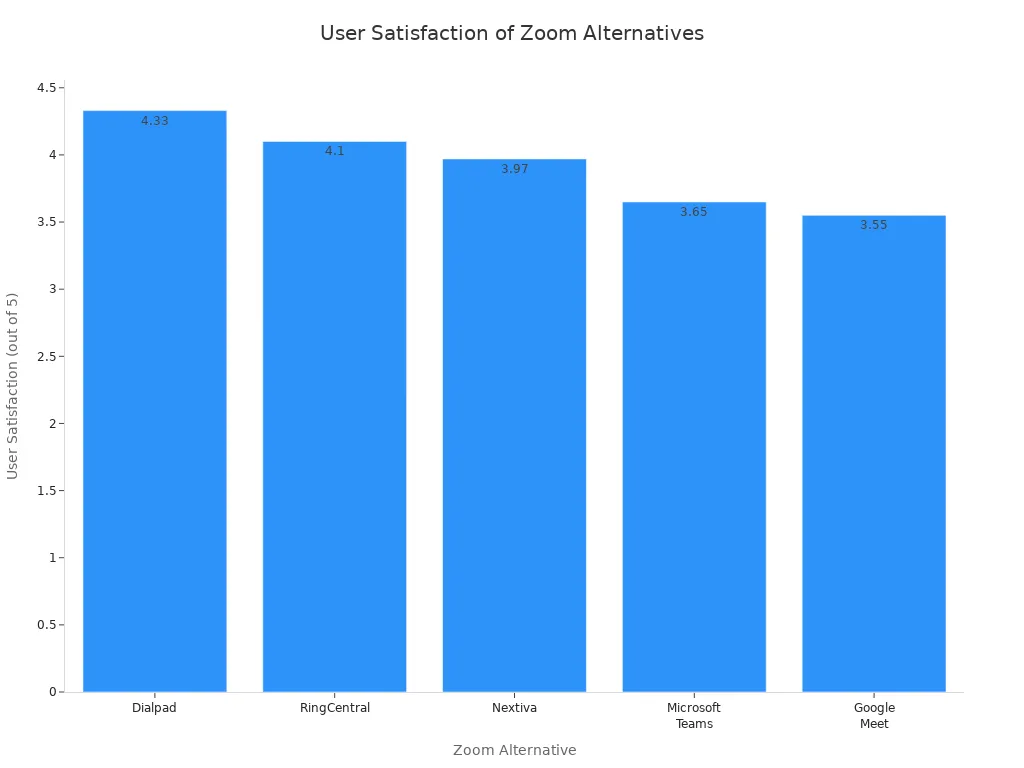
Use Case Highlights
You might wonder which platform works best for your situation. Here are some quick highlights:
- Lark: Great for teams that want chat, docs, and meetings in one place.
- Google Meet: Perfect for growing teams and easy scheduling.
- Microsoft Teams: Helps large organizations with collaboration and reduces meeting overload.
- Zoho Meeting: Supports businesses needing both internal and external communication.
- Slack: Ideal if you want to cut down on using multiple tools.
- RingCentral Video: Works well for unified business communication.
- Webex Meetings: Best for secure, large-scale events.
If you run remote or hybrid teams, Melp App improves collaboration. Discord fits organizations testing platforms before scaling. Whereby is handy for quick, casual meetings.
Note: Use the table and highlights to match your needs. If you want a zoom alternative for webinars, look at Zoho Meeting or Webex. For team chat and workflow, try Slack or Lark.
Lark
Pros and Cons
Lark gives you more than just video meetings. You get team chat, document editing, and project management in one place. You can start a call, share updates, or brainstorm with your team without switching apps. This saves you time and keeps everyone focused.
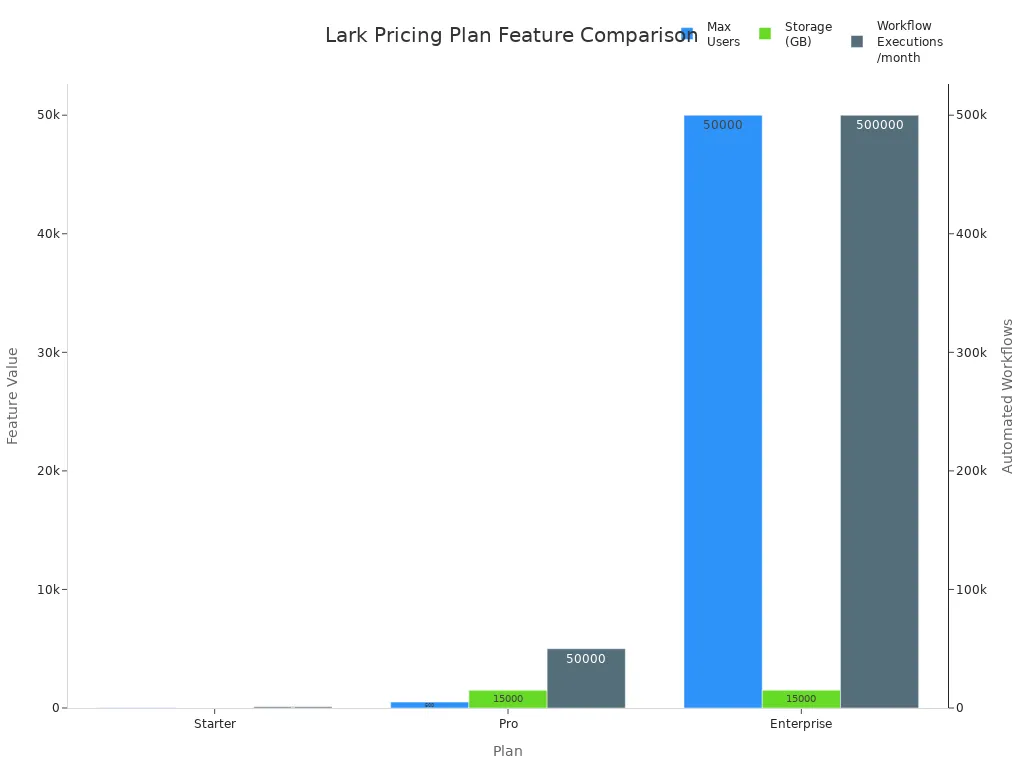
Let’s look at what makes Lark stand out:
Plan
Price
Key Features
Starter
Free
Up to 20 users, 18 months of message history, 100GB storage, 1,000 automated workflows/month, unlimited AI translation, enterprise search, 10 wiki spaces
Pro
$12/user/month (annual)
Up to 500 users, unlimited message history, 15TB storage, 50,000 workflows/month, 500 attendees, 24-hour meetings, unlimited transcription, unlimited wiki spaces, 10 trusted parties
Enterprise
Custom pricing
Unlimited users, Supergroups (up to 50,000 users), 15TB + 30GB/user storage, 500,000 workflows/month, SSO, advanced security and compliance
Pros:
- You can use Lark for free if your team is small.
- You get unlimited AI translation and enterprise search, even on the free plan.
- Lark lets you record meetings and store files for a long time.
- You can run meetings for up to 24 hours on the Pro plan.
- Lark supports huge teams with advanced security on Enterprise.
Cons:
- The free plan only supports up to 20 users.
- Some advanced features, like Supergroups and SSO, need the Enterprise plan.
- If you want more storage or workflow automations, you need to upgrade.
Tip: If you want everything in one app, Lark can help you avoid switching between tools.
Ideal Users
Lark works best for teams that want to keep everything together. You can chat, meet, and manage projects without leaving the platform. Here’s who will love Lark:
- Small teams that want a free, all-in-one workspace.
- Growing companies that need to scale up without changing tools.
- Global teams that need real-time document editing and instant communication.
- Project managers who want to coordinate tasks and meetings in one place.
- Organizations that care about security and need advanced controls.
You can use Lark to cut down on confusion and boost teamwork. If you want to save time and keep your team connected, Lark is a smart choice.
Google Meet
Pros and Cons
Google Meet gives you a simple way to run video meetings. You can join from your browser, phone, or tablet. You do not need to download anything. If you use Gmail or Google Calendar, you can start a meeting with just one click. That saves you time and keeps things easy.
Here are some features you get with Google Meet:
- You can invite up to 100 people for free. Paid plans let you host up to 250 attendees.
- You can share your screen to show slides or documents.
- Google Meet works on many devices. You can switch between your laptop and phone.
- Security is strong. Anti-hijacking tools protect your meetings.
- You can work on Google Docs with your team during a call.
You might notice a few limits:
- Sometimes, screen sharing does not work well. You may see blank screens or lose your presentation.
- Google Meet has fewer features than Zoom. You do not get advanced webinar tools or breakout rooms on the free plan.
- If you want to record meetings or use extra tools, you need a paid plan.
Tip: If you want a fast, easy meeting tool that connects with Google apps, Google Meet is a good pick. You do not need to worry about downloads or setup.
Ideal Users
Google Meet fits many types of users. You get strong security and easy access. If you work in business or education, you can control where your data is stored. That helps you follow rules and keep information safe.
Feature
Description
Data Sovereignty
You can choose where your data lives if you use G Suite Business or Education plans.
Identity and Access Mgmt
Admins can manage who joins meetings and which apps people use.
Advanced Protection
You can join a program that keeps your account safe from phishing and hackers.
You might like Google Meet if:
- You use Google Calendar to plan meetings.
- You want to work on Google Docs with your team during calls.
- You need strong security and control for your organization.
- You run classes or meetings and want a tool that works everywhere.
Google Meet helps you stay connected and productive. You can trust it for safe, easy meetings.
Microsoft Teams
Pros and Cons
You probably know Microsoft Teams as a tool for chatting and sharing files. It also gives you high-definition video calls that make your meetings look sharp and clear. You can co-author files, share your screen, and use automated transcription. These features help your team stay involved and make meetings more inclusive.
Here’s a quick table comparing Teams and Zoom:
Feature
Microsoft Teams
Zoom
Video Quality
High-definition video calls
Focused on digital gatherings
Collaboration Tools
Extensive messaging and document exchange
Primarily for presentations
Integration
Seamless with Microsoft 365 applications
Limited integration
Teams works best when you already use Microsoft 365. You can open Word, Excel, or PowerPoint right inside Teams. You don’t need to switch apps. This saves you time and keeps your work organized. Teams also offers strong security, including end-to-end encryption and compliance with rules for privacy.
Let’s look at some highlights:
- High-definition video calls
- Co-authoring files and screen sharing
- Adaptive formats and automated transcription
- Enhanced inclusivity and involvement
Tip: If you want a platform that connects meetings, messaging, and files, Teams makes your workflow smoother.
Cons: You might find Teams a bit overwhelming if you only need simple video calls. Sometimes, the interface feels crowded. You may need to learn new features if you haven’t used Microsoft 365 before. Teams works best for groups that need lots of collaboration.
Ideal Users
You should pick Microsoft Teams if your organization already uses Microsoft 365. Teams connects with Outlook, Word, Excel, SharePoint, and OneDrive. You get a workspace where meetings, chats, files, and projects all live together. You don’t waste time jumping between apps.
Teams fits schools, businesses, and large organizations. If you want to keep everything in one place and boost teamwork, Teams is a smart choice. You get strong security, easy file sharing, and tools for big projects. Teams helps you stay connected and productive every day.
Webex Meetings
Pros and Cons
Webex Meetings gives you a powerful way to connect with your team or clients. You get more than just video calls. Webex brings you messaging, collaboration tools, and smart features that make meetings smoother.
Pros:
- You can enjoy cutting-edge video conferencing with clear audio and video.
- Webex uses noise cancellation, so background sounds do not distract you.
- Real-time transcription helps you follow along and keeps everyone on track.
- AI-powered meeting summaries save you time. You do not have to take notes.
- Webex offers robust security measures. You can trust your meetings are safe.
Cons:
- The interface can feel complex if you want something simple.
- Some advanced features need a paid plan.
- You may need time to learn all the tools if you are new to Webex.
Tip: If you want a platform that goes beyond basic video calls, Webex can help you work smarter.
Ideal Users
You might wonder if Webex Meetings fits your team or industry. Webex works well for many groups. You can use it if you run a small startup or a large company. Here are some industries that get the most from Webex:
- Technology
- Education
- Healthcare
- Finance
- Many other fields
Check out this table to see how Webex matches different team sizes:
Industry
Team Size
Technology
Small to Large
Education
Small to Large
Healthcare
Small to Large
Finance
Small to Large
Various
Small Startups to Large Enterprises
You get tools that help you manage meetings, share ideas, and keep your data secure. If you need noise cancellation, real-time transcription, or AI meeting summaries, Webex has you covered. You can use Webex for classes, patient consultations, team projects, or financial reviews. Webex adapts to your needs and helps you stay connected.
Zoho Meeting
Pros and Cons
Zoho Meeting gives you a simple way to run video calls and webinars. You can set up meetings fast and invite your team or clients with just a few clicks. If you already use Zoho apps, you will love how Zoho Meeting connects with the rest of the Zoho Suite. You can schedule meetings right from your calendar or CRM. This saves you time and keeps your work in one place.
Here’s a quick look at how Zoho Meeting stacks up against other platforms:
Feature/Aspect
Zoho Meeting
Competitors
Participant Limits
Varies by plan
Often higher in premium plans
Integration Capabilities
Integrates with Zoho Suite
Varies widely
Breakout Rooms
Yes
Available in some platforms
Webinar Functionality
Yes
Available in some platforms
Pricing Structure
Tiered pricing with annual options
Often more complex and higher
Pros:
- You get breakout rooms and webinar tools, even on lower-priced plans.
- Zoho Meeting works well with other Zoho apps, so you can manage everything in one place.
- The pricing is clear and budget-friendly. You can pick a plan that fits your needs.
- You can use strong security features to keep your meetings safe.
Cons:
- Some plans limit how many people can join your meeting.
- If you need advanced features for very large events, you might need to upgrade.
- You may find fewer integrations outside the Zoho ecosystem.
Tip: If you want a simple, secure, and affordable meeting tool, Zoho Meeting is a smart choice.
Ideal Users
You might wonder if Zoho Meeting fits your team. Here are the types of users who get the most out of it:
- Small to medium-sized businesses that want easy video meetings.
- Teams already using Zoho products who want smooth integration.
- Budget-conscious organizations looking for affordable plans.
- Companies that need basic webinar features for training or events.
- Security-conscious teams who care about privacy and data safety.
If you want a tool that keeps things simple and works well with Zoho apps, Zoho Meeting can help you stay connected and organized. You do not need to spend a lot to get the features you need. Zoho Meeting makes it easy to run meetings, share ideas, and keep your team on track.
GoTo Meeting
Pros and Cons
GoTo Meeting makes your video meetings easy. You can set up calls fast and invite your team with just a few clicks. The platform gives you HD video, audio conferencing, and screen sharing. You also get drawing tools that help you explain ideas during meetings. If you work with people in different countries, you can make unlimited international calls on the base plan.
You do not need to worry about logging in. GoTo Meeting supports single sign-on and many login methods. You can join meetings from your phone, tablet, or computer. The onboarding process feels simple, so you can get started without much training. If you run into trouble, you can reach customer support any time. The active community forum helps you find answers quickly.
Let’s look at the strengths and weaknesses:
Strengths
Weaknesses
Straightforward onboarding process for users
Slower resolution times for customer support
24/7 customer support available
Features sometimes in beta, leading to frustration
Active community forum for quick vendor input
Fewer third-party app integrations compared to competitors
Supports single sign-on and various login methods
Limited call monitoring features for training
Unlimited international calls in base plan
AI tools less advanced than some competitors
Tip: If you want a platform that works well for global teams and offers reliable support, GoTo Meeting is a solid choice. You may notice fewer integrations and less advanced AI tools, but the basics work well.
Ideal Users
GoTo Meeting fits many organizations. You can use it if you run a small startup or manage a large enterprise. The platform offers plans for different needs. The Professional Plan lets you host up to 150 participants. The Business Plan supports 250 users. The Enterprise Plan gives you advanced features like mobile app recording and personalized support.
You might benefit from GoTo Meeting if:
- You need HD video and clear audio for meetings.
- You want to share your screen or use drawing tools to explain ideas.
- You work with teams in different countries and need unlimited international calls.
- You use apps like Slack, Salesforce, or Microsoft Teams and want easy integration.
- You value simple onboarding and strong customer support.
GoTo Meeting helps you run meetings smoothly. You can connect with your team, share ideas, and keep your business moving forward. If you want a platform that grows with your organization, GoTo Meeting gives you flexibility and reliability.
RingCentral Video
Pros and Cons
RingCentral Video gives you a smooth way to run video meetings. You can join calls from your browser or mobile app. You do not need to download extra software. The platform offers HD video and clear audio, so you can see and hear everyone without trouble. You get team messaging, file sharing, and even task management in one place. This helps you keep your work organized.
Pros:
- You can schedule meetings right from your calendar.
- The platform supports large meetings with up to 200 participants.
- You get built-in team chat and file sharing.
- RingCentral Video uses strong security to protect your calls.
- You can record meetings and share them with your team.
Cons:
- Some advanced features need a paid plan.
- The interface may feel busy if you want something simple.
- You might find fewer integrations compared to other tools.
Tip: If you want a tool that combines video, chat, and tasks, RingCentral Video can help you stay on track.
Ideal Users
You might wonder if RingCentral Video fits your team. This platform works well for many types of businesses. You can use it for secure meetings, remote learning, or team check-ins. Here’s a quick look at which industries get the most from RingCentral Video:
Industry Type
Suitability for RingCentral Video
Financial services
Ideal for secure video meetings and client interactions.
Healthcare
Supports telehealth consultations and team collaboration.
Education
Facilitates remote learning and virtual classrooms.
Government
Enables secure communication and meetings.
Retail
Assists in training and customer service interactions.
Manufacturing
Useful for team check-ins and project updates.
Transportation and logistics
Enhances coordination and communication across teams.
You can use RingCentral Video if you need secure meetings or want to connect teams in different locations. The platform helps you run training sessions, hold virtual classrooms, or manage projects. If you work in healthcare, finance, or government, you will appreciate the strong security. Retail and manufacturing teams can use it for updates and training. No matter your industry, RingCentral Video helps you stay connected and productive.
Slack
Pros and Cons
Slack makes video meetings feel like a natural part of your daily work. You can start a quick call, called a "huddle," right from any channel or direct message. This helps you solve problems fast and keeps your team connected. You can share your screen, walk through documents, or just chat face-to-face. Slack also lets you add reactions and emojis, so meetings feel lively and fun.
Here’s a quick look at what you get with Slack’s video meetings:
Feature/Limitations
Description
Instant voice and video calls
Start a huddle from any Slack channel or direct message for quick discussions.
Screen sharing
Walk through documents, presentations, or ideas in real time.
Message thread integration
Save key takeaways, links, and files in a dedicated thread for easy follow-up.
Reactions and emoji
Add quick reactions to keep conversations interactive without interrupting.
File sharing
Share documents directly in a huddle from Google Drive, Dropbox, or OneDrive integrations.
Slack AI
Enable AI-powered tools to record, transcribe, and summarize meetings and share action items.
Third-party meeting integrations
Easily switch to Zoom, Microsoft Teams, or Google Meet for more formal meetings.
Pros:
- You can start meetings fast with just one click.
- Slack keeps all your chats, files, and meeting notes in one place.
- You can use AI tools to get meeting summaries and action items.
- Slack works well with other meeting apps.
Cons:
- Huddles work best for small, quick meetings.
- You may need another tool for big webinars or formal presentations.
Tip: If you want to keep your team’s work and meetings together, Slack makes it easy.
Ideal Users
Slack fits teams that want to move fast and stay connected. You can use it if you work in the office, from home, or both. Slack helps you switch between chat and video without missing a beat. If your team uses lots of different tools, Slack brings them all together.
Here’s how different groups use Slack for video meetings:
User Group/Workflow
Compatibility with Slack for Video Meetings
Hybrid Teams
Supports both in-person and remote participants, so everyone can join in.
Security-Conscious Teams
Lets you manage sensitive talks with strong security features.
Teams Using Multiple Tools
Integrates with Zoom, Teams, and Google Meet for easy switching.
Teams Focused on Collaboration
Huddles keep quick chats and meetings tied to your ongoing work.
You might love Slack if you want to keep everything in one place. Hybrid teams can join meetings from anywhere. Security-focused groups can trust Slack to keep chats safe. If you use lots of apps, Slack helps you connect them all. Teams that need to talk and work together every day will find Slack a perfect fit.
BlueJeans Meetings
Pros and Cons
You want a video meeting tool that feels easy to use. BlueJeans Meetings gives you that. The interface is simple. You can jump into calls without feeling lost. The audio and video quality stand out. You hear voices clearly and see faces without lag. If you need to focus on what people say, this helps a lot.
BlueJeans also brings a Smart Meeting feature. This tool helps you save time. It highlights key moments and makes it easy to share meeting notes. You do not have to worry about missing important points.
Let’s break down the main pros and cons:
👍 Pros
👎 Cons
Intuitive, easy-to-use interface
No persistent chat—chats disappear after meetings, so you may need Slack or another chat tool
Excellent audio and video quality
File annotation is basic—no detailed editing, so you might need Google Docs for co-editing
Smart Meeting feature saves time
Editing meeting recordings needs Panopto integration; standard users get only 5 hours of recording access
Note: If you want to keep chats or edit files together, you might need extra tools. BlueJeans focuses on making meetings smooth, not on replacing your whole workflow.
Ideal Users
You might wonder if BlueJeans Meetings fits your team. This platform works best for small hybrid teams. If you meet every day and want a tool that just works, BlueJeans is a smart pick. You do not get lost in menus or settings. You can share meeting highlights with people who missed the call.
Here’s a quick look at who benefits most:
Type of Organization/Event
Description
Small Hybrid Teams
Perfect for teams that meet daily and want a simple video tool. You can share key meeting outcomes with others who could not join.
If you want a tool that keeps things simple and clear, BlueJeans Meetings helps you stay focused. You do not need to learn lots of new features. You just meet, talk, and move on with your day.
Whereby
Pros and Cons
You want a video meeting tool that feels easy. Whereby makes things simple. You do not need to download anything. You can join meetings just by clicking a link. You do not even need to create an account. This saves you time and keeps things stress-free, especially if you are new to video calls.
Here are some things you will like about Whereby:
- Whereby is web-based. You can use it on any device with a browser.
- You join meetings with a URL. No sign-up needed.
- The platform is user-friendly. You do not get lost in menus.
- Whereby follows strict Norwegian privacy laws. Your data stays safe.
- It collects less user data than Zoom and other competitors.
- The business model does not rely on ads or selling your information.
- You can use a free version for personal calls.
- The Pro plan starts at $6.99/month. You get more features and participants.
- The Business plan costs $9.99/month. You get extra meeting rooms and tools.
Tip: If you care about privacy and want a tool that works right away, Whereby is a smart choice.
You might notice a few downsides:
- The free plan has limits. You cannot host big meetings.
- Advanced features cost extra.
- Whereby works best for simple meetings, not huge webinars.
Ideal Users
You may wonder if Whereby fits your team or business. Whereby works well for many groups. You get a tool that is easy to use and keeps your data private. If you run a small business or work with clients, you can set up meetings fast.
Here’s a table showing who benefits most from Whereby:
User Scenario/Industry
Description
Enterprise Teams
Large organizations with marketing teams and set processes enjoy custom features and depth.
Data-Driven Decision Makers
Teams focused on analytics and reporting find value in Whereby’s reporting tools.
Agencies Managing Multiple Clients
Agencies use reporting features to create professional reports, improving client communication.
You can use Whereby if you want quick meetings, strong privacy, and simple setup. Agencies and data-driven teams will like the reporting features. Enterprise teams can customize their experience. Whereby helps you stay connected without making things complicated.
Choosing a Zoom Alternative
 Image Source: pexels
You want to pick the right zoom alternative for your team. Let’s break down the key factors that help you make a smart choice.
Team Size & Scalability
Think about how many people join your meetings. Some platforms work best for small groups, while others scale up for big teams. If your team grows fast, you need a zoom alternative that handles more users without slowing down. Check if the platform supports large webinars or breakout rooms. You don’t want to switch tools every time your team expands.
Integrations & Workflow
You probably use other apps like calendars, project tools, or CRM systems. Look for a zoom alternative that connects with your favorite software. Integrations save you time and keep your workflow smooth. If you can schedule meetings from your calendar or share files during calls, your team stays organized. Review collaboration features like document editing and task management.
Security & Privacy
You want your meetings to stay private. Make sure the platform offers strong security, like encryption and compliance with privacy laws. Some tools let you control who joins meetings or where your data is stored. If you work in healthcare or finance, check for extra protection. Security matters for every team, so don’t skip this step.
Budget & Free Plans
Money matters. Compare pricing and see if there’s a free plan that fits your needs. Some zoom alternatives offer basic features for free, while others charge for extras like recording or large meetings. Look at what you get for your money. If you’re not sure, try the platform before you commit.
Tip: Here’s a simple guide to help you decide:
- Identify your core demands.
- Review collaboration features.
- Confirm integration with your systems.
- Emphasize protection and confidentiality.
- Compare pricing and support.
- Test the platform before choosing.
- Make sure it fits your organization.
You can match your needs to the right zoom alternative by following these steps. Take your time and pick the platform that helps your team work better.
Choosing the right Zoom alternative can make your meetings smoother and your team happier in 2026. Use the comparison table and decision guide to find what fits you best.
Tip: Try out a few platforms before you decide. Ask your team what they like and what works for them.
- Test different tools with your group.
- Listen to feedback.
- Pick the one that helps everyone stay connected and productive.
FAQ
What is the best free Zoom alternative for small teams?
You should try Lark or Google Meet. Both offer free plans with solid features. Lark gives you chat, docs, and meetings in one place. Google Meet works well if you already use Gmail or Google Calendar.
Can I use these platforms without downloading an app?
Yes! Whereby and Google Meet let you join meetings right from your browser. You just click a link. No downloads or sign-ups needed. This makes things quick and easy for you and your guests.
Which Zoom alternative is best for privacy?
If you care about privacy, Whereby stands out. It follows strict Norwegian privacy laws and collects less data than most competitors. Webex and Microsoft Teams also offer strong security for regulated industries.
Do these alternatives support large webinars?
Most do! Webex Meetings, Microsoft Teams, and Zoho Meeting support large webinars and virtual events. You can host hundreds of participants. Just check the plan details before you choose.
How do I pick the right Zoom alternative for my team?
- List your must-have features.
- Think about your team size.
- Check for integrations with your favorite tools.
- Try a free plan first.
- Ask your team for feedback.
You will find the best fit by testing a few options.
Frequently Asked Questions
What is the best free Zoom alternative?
Google Meet and Jitsi Meet are the best free Zoom alternatives for most people. Jitsi is open-source with no account required, Google Meet integrates with Workspace, and Microsoft Teams has a capable free tier.
Is there a Zoom alternative with no time limit?
Yes. Jitsi Meet has no meeting time limit, and Google Meet allows longer calls than Zoom free 40-minute cap, making them popular Zoom alternatives for longer meetings.
Also read: Top Slack Alternatives for Seamless Team Collaboration in 2026